For Microsoft Flight Simulator 2020 & 2024

Flight Deck Checklists

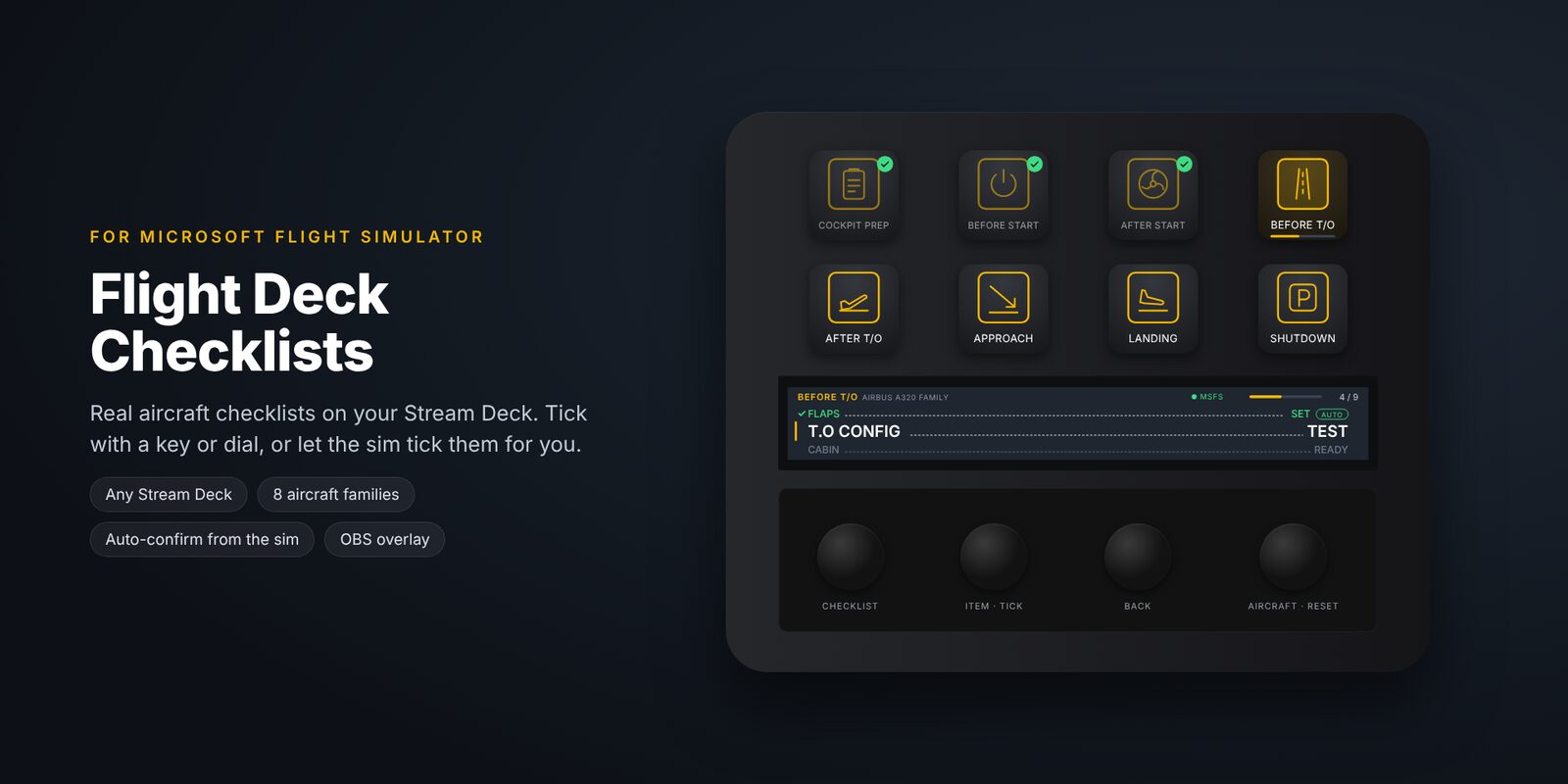
Real aircraft checklists on your Stream Deck. Tick with a press or a dial, or let the sim tick them for you, so there's no tablet or second screen to juggle.

Any Stream Deck8 aircraft familiesChecklist editorOBS overlay
Flight Deck Checklists on a Stream Deck +

What it does

A checklist that knows what the aircraft is doing

Auto-confirm

The sim ticks items for you

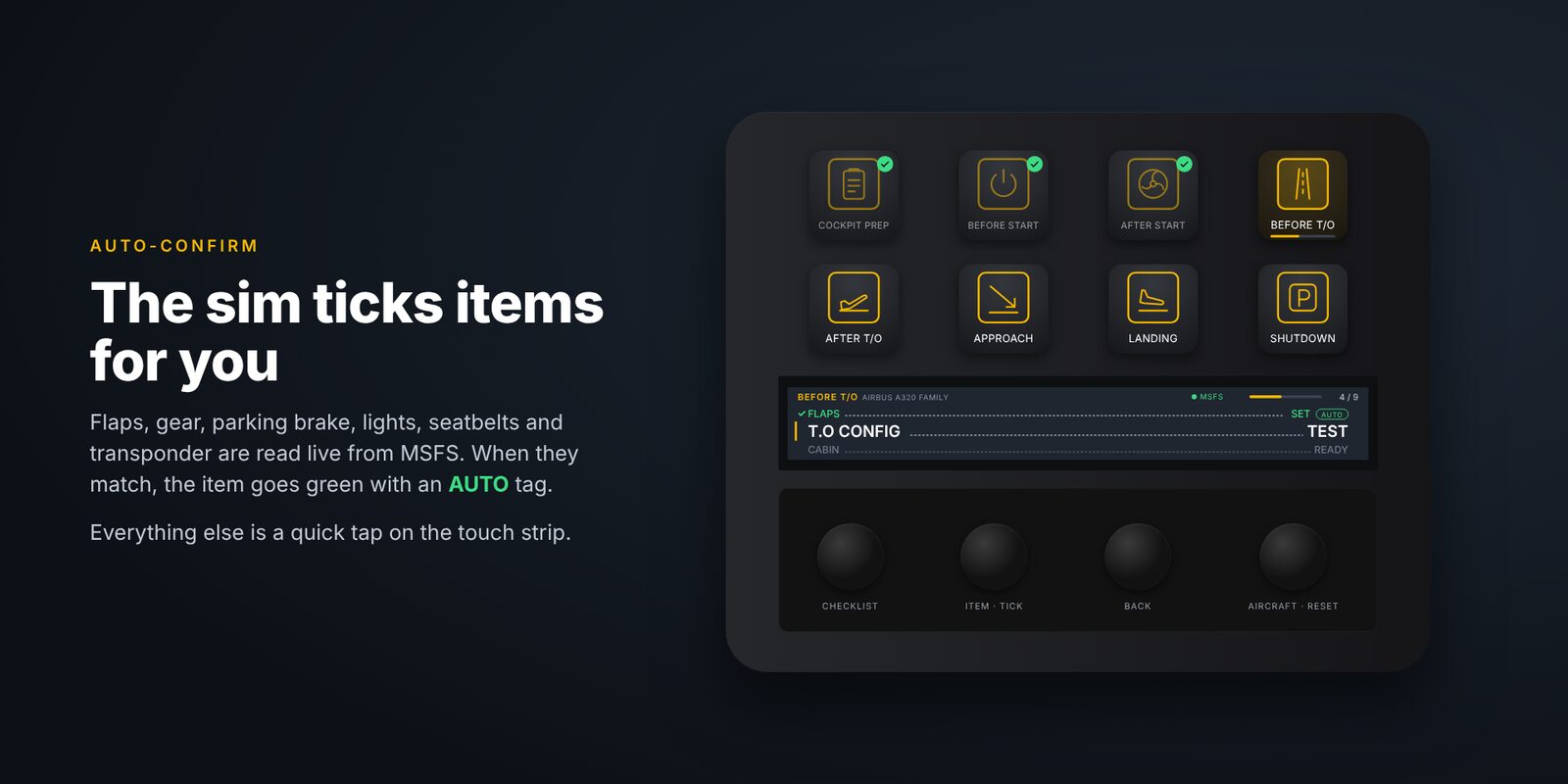
Flaps, gear, parking brake, lights, seatbelt signs and transponder are read live from MSFS. When they match, the item goes green with an AUTO tag. Everything else is a quick press.

Checklist item confirmed automatically by the sim

Catches mistakes

Flaps still up? You'll know.

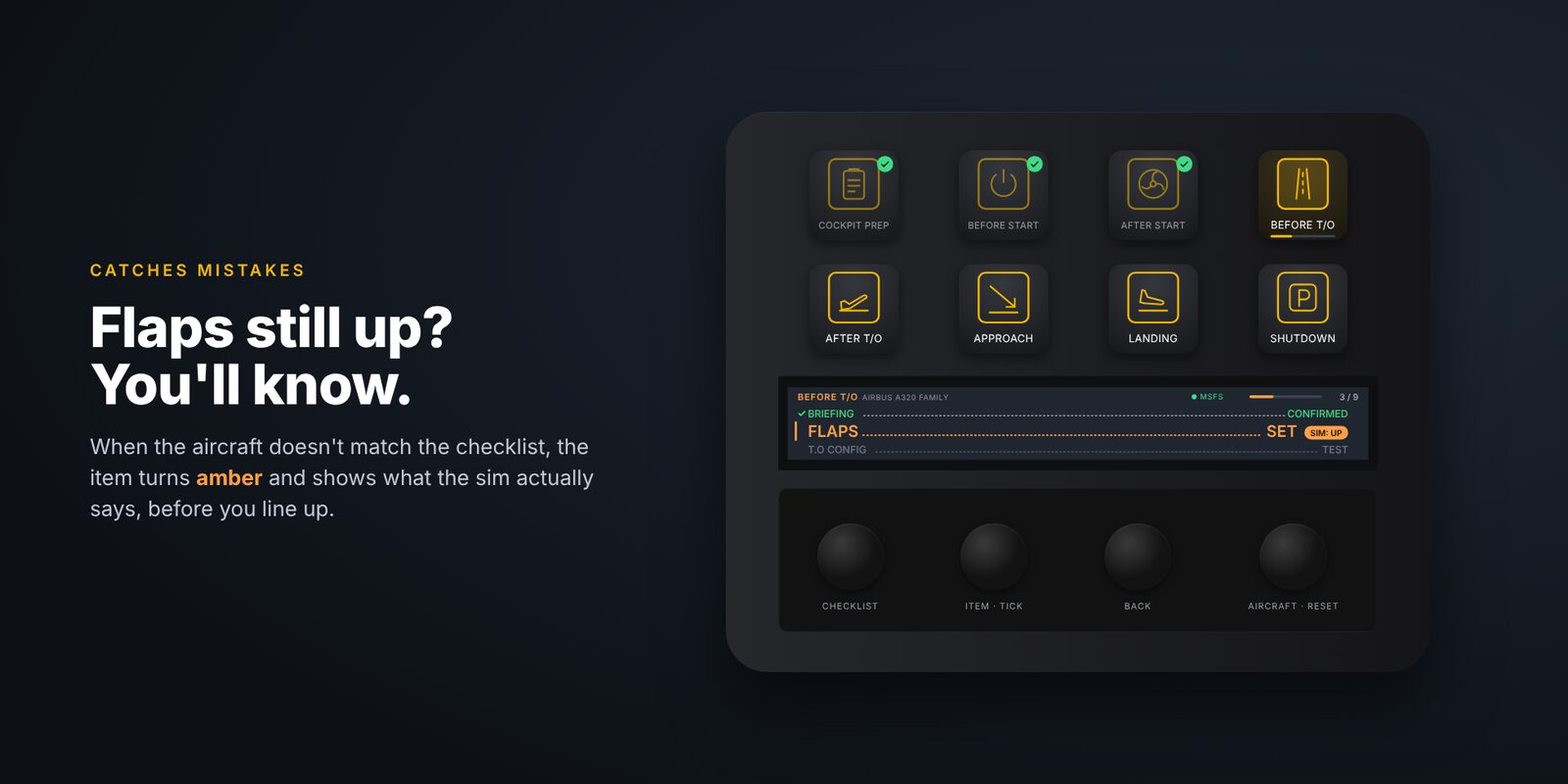
If the aircraft doesn't match the checklist, the item turns amber and shows what the sim actually says, such as "SIM: UP", before you line up.

Amber warning when the flaps don't match the checklist

Follows your flight

The right checklist at the right time

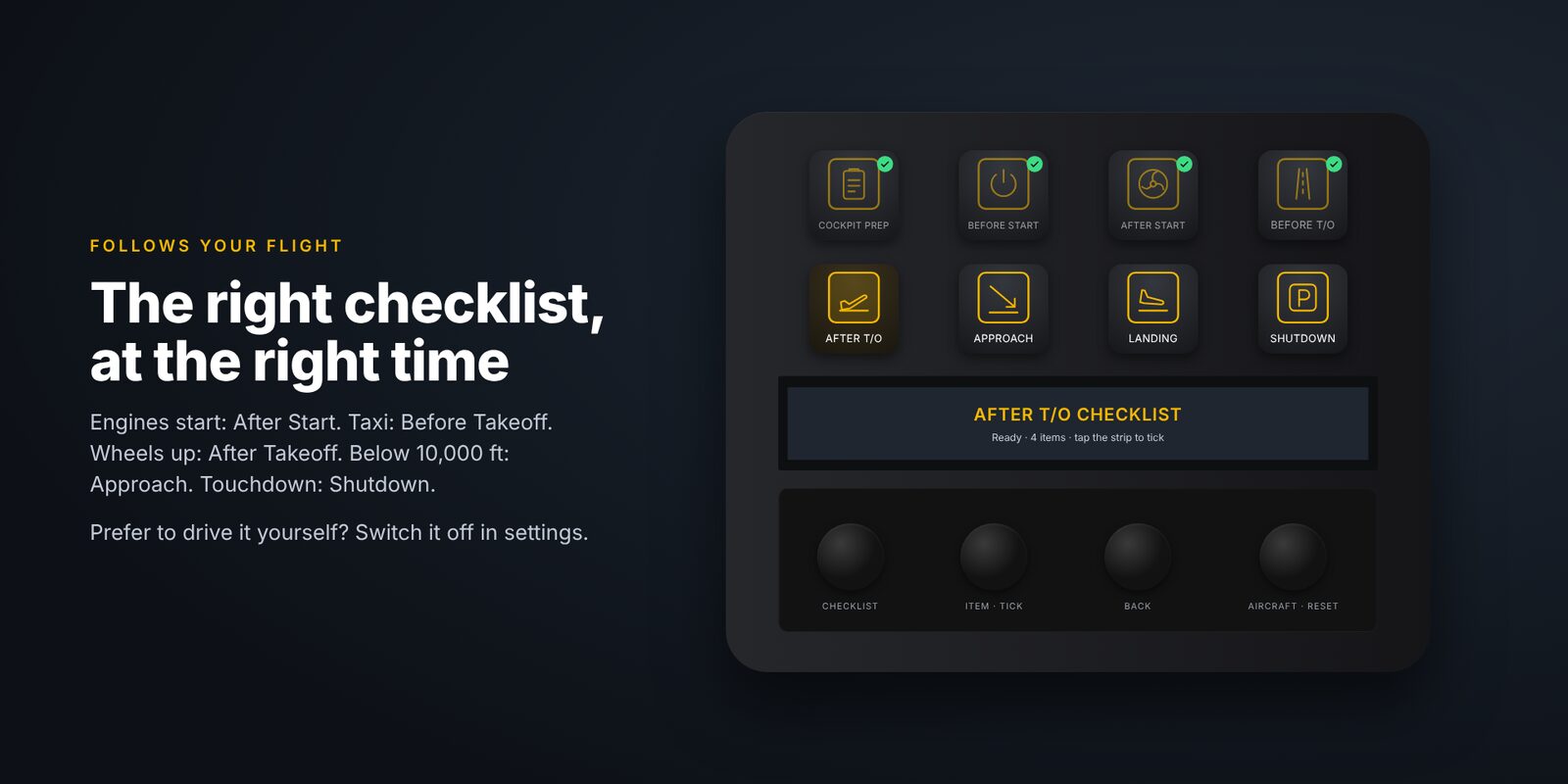
Engines start: After Start. Taxi: Before Takeoff. Wheels up: After Takeoff. Below 10,000 ft: Approach. Touchdown: Shutdown. Prefer to drive it yourself? Switch it off in settings.

After Takeoff checklist opening automatically

Every aircraft

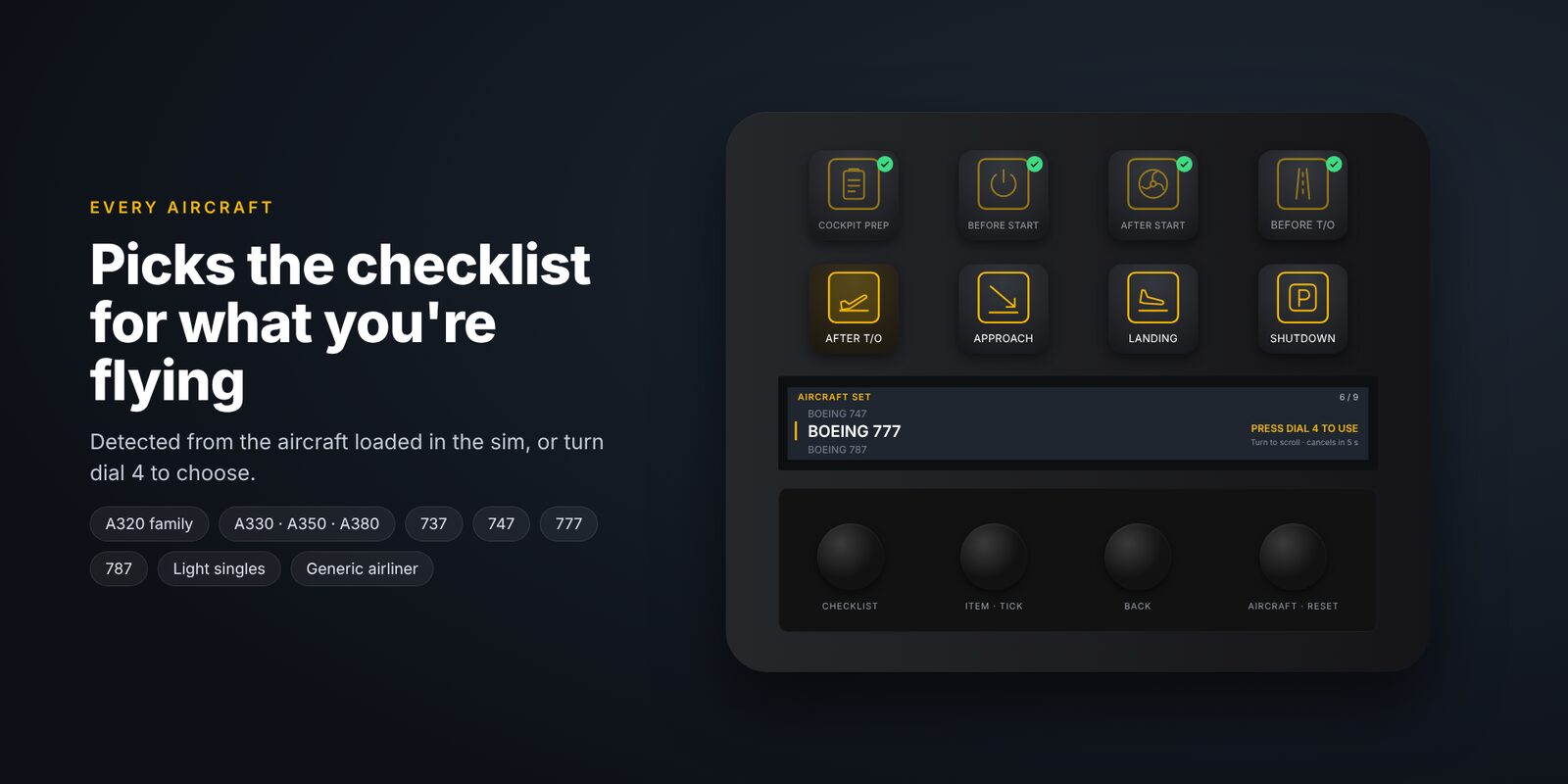
Picks the set for what you're flying

Detects the aircraft loaded in the sim, or you can choose a set yourself.

A320 familyA330 · A350 · A380737747777787Light singlesGeneric airliner
Aircraft set picker on the touch strip

New · Checklist editor

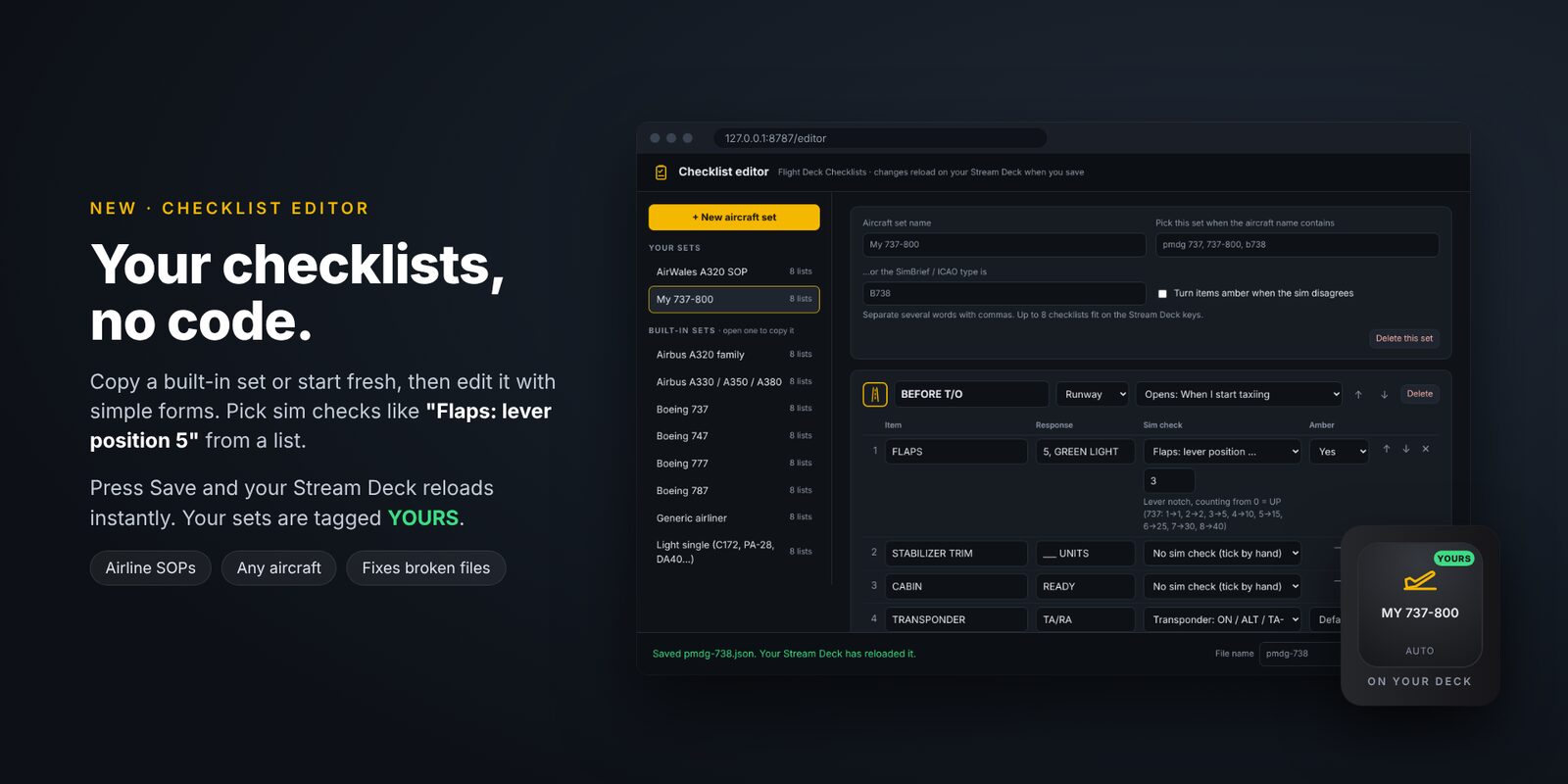
Your own checklists, no code

Copy a built-in set or start fresh, then edit it with simple forms in your browser. Pick sim checks like "Flaps: lever position 5" from a list. Press Save and your Stream Deck reloads straight away. Your sets are tagged YOURS, and updates never overwrite them.

The checklist editor in a browser

For streamers

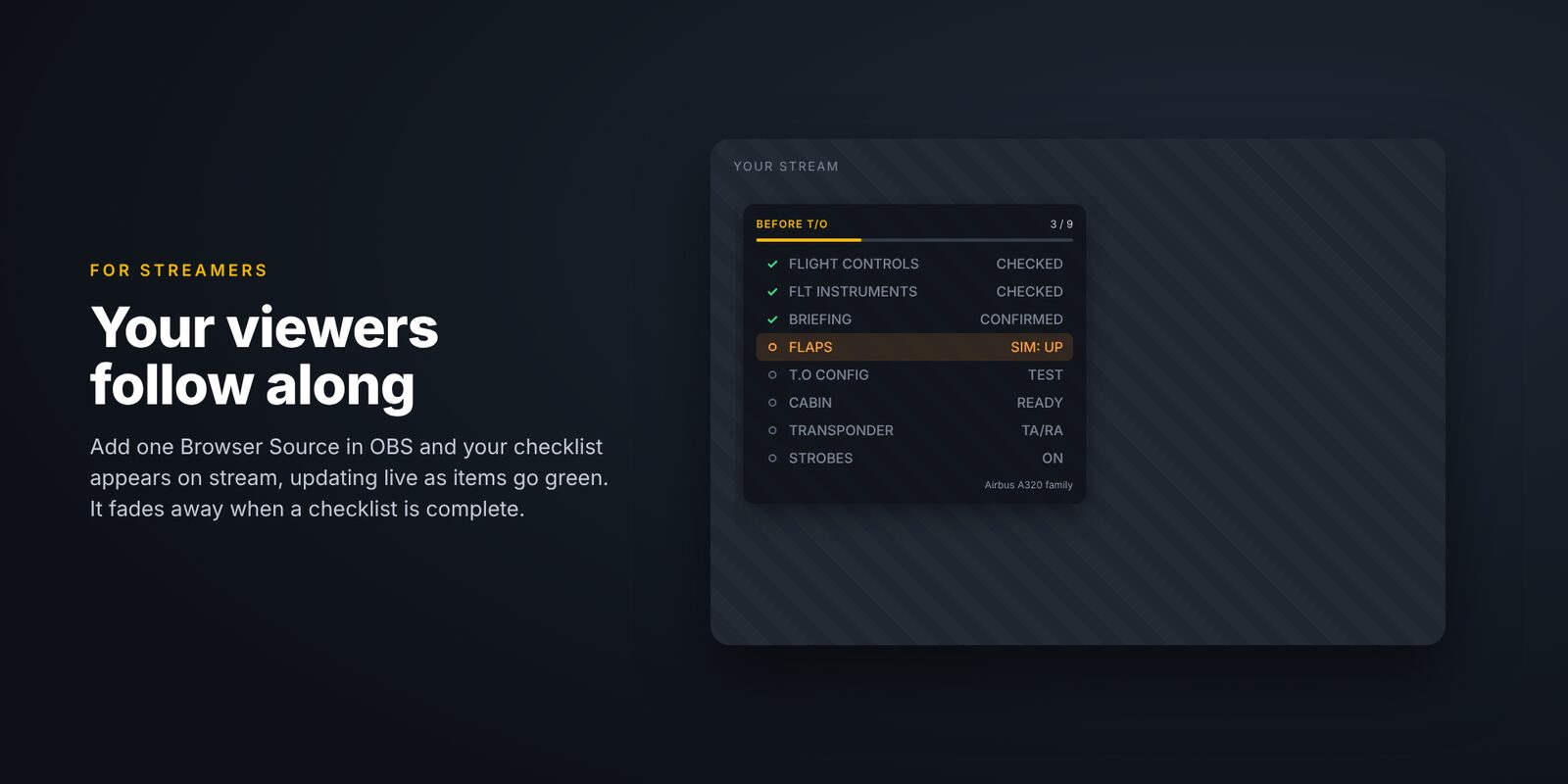
Your viewers follow along

Add one Browser Source in OBS and your checklist appears on stream, updating live as items go green. It fades away when a checklist is complete.

Checklist overlay in OBS

Works on every Stream Deck

Keys, dials, or both

Standard, XL, Mini, Neo and Stream Deck Mobile: every item gets its own key, and longer checklists page automatically. Stream Deck + also gets the touch-strip display on the dials.

Setup

Up and running in a minute

Double-click the .streamDeckPlugin file, then drag the actions from Flight Deck Checklists onto your deck. Pick your Stream Deck:

Layout

Cockpit PrepBefore StartAfter StartBefore T/O After T/OApproachLandingShutdown

Checklist Key on all 8 keys · Checklist Display on all 4 dials

Controls

  • Keys: open that checklist. Green tick = complete.
  • Dial 1: change checklist. Press: next unfinished.
  • Dial 2: move through items. Press: tick.
  • Dial 3: press to go back and untick.
  • Dial 4: turn to choose aircraft. Press: reset. Hold: reset all.
  • Touch strip: tap anywhere to tick.

Start MSFS and load an aircraft: the checklist set is chosen automatically. To make your own, click any Flight Deck Checklists key or dial and choose Open checklist editor. The full user guide (PDF) covers everything, including the OBS overlay.

Download

Flight Deck Checklists v1.2.2

Free. Double-click the plugin file to install, or update over an older version. Your keys, settings and your own checklists are kept.

SystemWindows 10 or 11
SimulatorMSFS 2020 or 2024
Stream DeckAny model, app 6.5 or newer
InstallStream Deck plugin, not a Community folder add-on

Changelog

What's new

1.2.2

  • New checklist editor: create and edit checklists in your browser, no code needed.
  • Copy any built-in set; your own sets are tagged YOURS and never overwritten.
  • Pick sim checks from a list; delete your own sets.
  • Broken files are listed with the exact line and a plain-English fix.

1.1.2

  • Keys and the touch strip are drawn by the plugin itself, so names always show.
  • Bundled font, so it looks the same on every PC.

1.1.1

  • Works on any Stream Deck: new key actions for items, title, previous/next, aircraft and reset.
  • Item keys number themselves and page automatically.

Help

Troubleshooting

The strip or keys say NO SIM

Start MSFS and load into an aircraft. The plugin retries every 10 seconds; nothing else to install.

It picked the wrong aircraft set

Turn dial 4 (or press the Aircraft key) to choose the right one. Pick Automatic to go back to detection.

An item goes amber but the switch is right

That aircraft reports the switch differently. Tick it by hand, or set its Amber option to No in the checklist editor.

Few items tick themselves on Fenix, PMDG or iniBuilds

Expected: study-level aircraft keep many switches outside the standard sim variables. Those items stay manual.

My own checklist doesn't show up

Open the checklist editor: files with a mistake are listed under "Needs fixing" with the exact line. Make sure the keys and dials you're using are from Flight Deck Checklists.

Can I use it for real flying?

No. The checklists are simplified for flight simulation and are not real aircraft procedures.